AppList



A tool for scanning, cataloging, and exporting all installed applications on your Windows system. Perfect for system migrations, documentation, and reinstallation planning.
Features
Comprehensive Scanning
- Registry Scanning - Scans all uninstall registry keys:
- HKEY_LOCAL_MACHINE (64-bit applications)
- HKEY_LOCAL_MACHINE\WOW6432Node (32-bit applications)
- HKEY_CURRENT_USER (user-installed applications)
- Microsoft Store Apps - Detects UWP/AppX packages via PowerShell
- Program Files Scanning - Finds unregistered applications in Program Files directories
- Winget Cross-Reference - Populates Winget IDs for registry apps (enables one-command reinstall exports)
Detailed Information Captured
- Application name
- Publisher/vendor
- Version number
- Installation date
- Installation location (disk path)
- Registry uninstall key path
- Uninstall command
- Estimated size
- Architecture (32-bit/64-bit/UWP)
- Application type (Desktop/Store/Unregistered)
- Winget Package ID (when matched)
Premium Interface
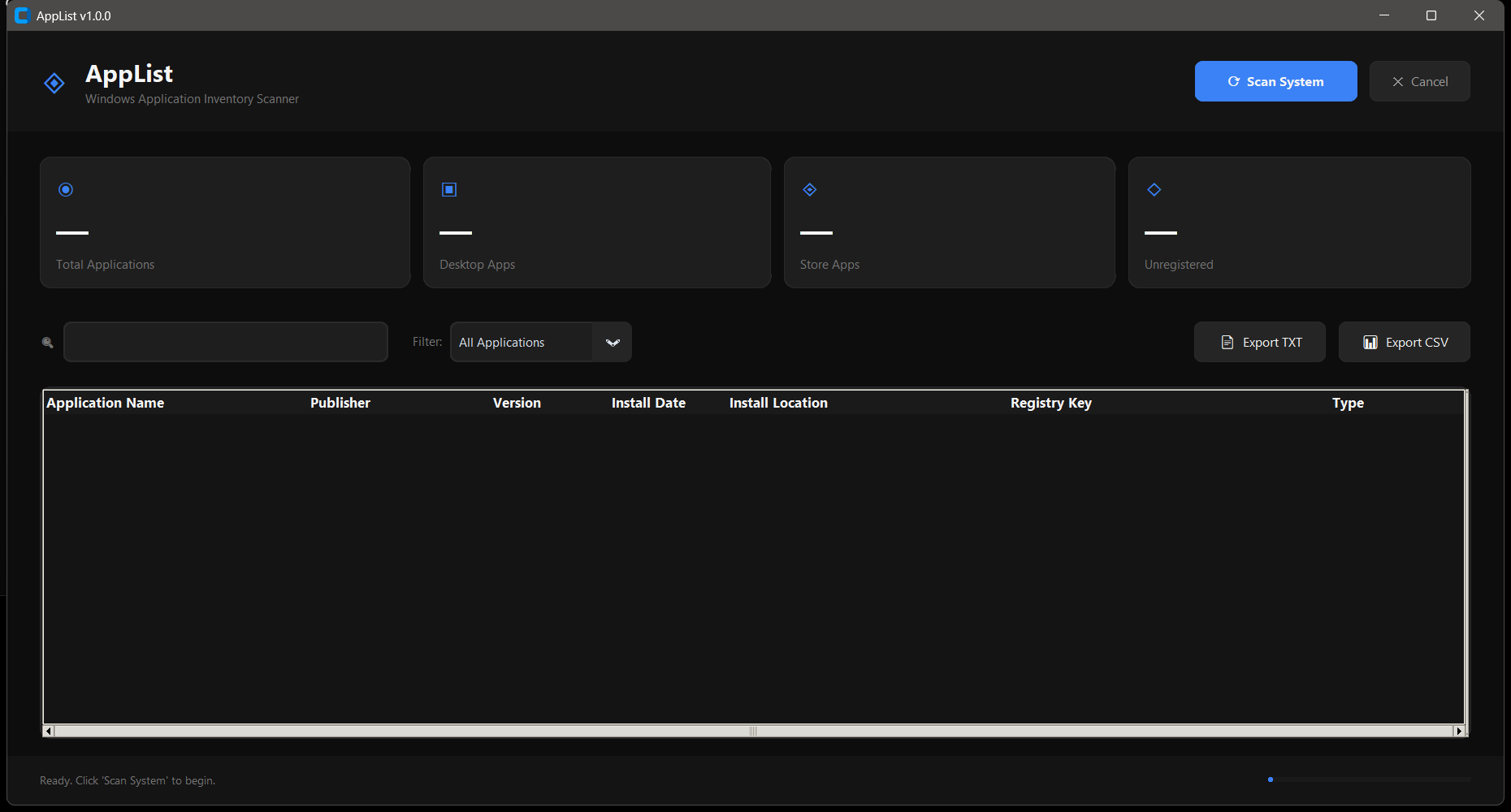
- Dark theme with professional aesthetics
- Dark Windows title bar integration
- Real-time progress tracking
- Statistics dashboard with card widgets
- Sortable columns (click headers) — Name, Publisher, Version, Date, Location, Registry Key, Type, Size, Arch, Winget ID
- Live search filtering
- Category filtering (Desktop/Store/Unregistered)
- Context menu with quick actions
Export Options
- TXT Export - Formatted report with full details
- CSV Export - Spreadsheet-compatible for Excel/Google Sheets (includes Winget ID column)
- Markdown Export - Grouped report (Desktop / Store / Unregistered) — pastes cleanly into ticketing systems and GitHub
- JSON Export - Full AppList schema, round-trippable for diffing between machines
Installation
Prerequisites
- Windows 10/11
- Python 3.8 or higher
Run the Application
Simply run the script - dependencies are installed automatically on first launch:
python AppList.pyOr double-click AppList.py in Windows Explorer.
Usage
- Launch the application
- Click "Scan System" to begin comprehensive scanning
- Use the search bar to find specific applications
- Use the filter dropdown to show only certain types
- Click column headers to sort
- Right-click any item for context menu options
- Double-click to open the install location
- Export your list as TXT, CSV, Markdown, or JSON
Export Formats
TXT Format
Human-readable report with:
- Header with generation timestamp
- Numbered list of all applications
- Full details for each application
- Professional formatting
CSV Format
Spreadsheet-ready with columns:
- Application Name, Publisher, Version, Install Date
- Install Location, Registry Key, Uninstall Command
- Estimated Size, Source, Architecture, Type, Winget ID
Markdown Format
GitHub-ready grouped report:
- Sections for Desktop Apps, Store Apps, and Unregistered
- Pipe-table format with Name, Publisher, Version, Date, Size, Winget ID
- Pastes cleanly into GitHub issues, Confluence, ticketing systems
JSON Format
Structured export for programmatic use:
- Full AppList schema with all fields
- Machine name and generation timestamp
- Round-trippable for diff/compare between machines
Tips for Windows Reinstallation
- Run a full scan before reinstalling Windows
- Export to Markdown (for reading) and JSON (for diffing)
- The Winget ID column shows which apps can be reinstalled with
winget install <ID> - Use the CSV in Excel to mark off apps as you reinstall them
- Note the install locations - some apps may need special paths
Technical Notes
- Runs with elevated privileges for complete registry access
- Automatically filters out:
- System components
- Windows updates
- Framework packages
- Duplicate entries
- DPI-aware for sharp rendering on high-resolution displays
- Thread-safe scanning with cancellation support
- Auto-installs dependencies on first run
License
MIT License - Free for personal and commercial use.
AppList v1.1.0
A tool for scanning, cataloging, and exporting all installed applications on your Windows system. Perfect for system migrations, documentation, and reinstallation planning.
Features
Comprehensive Scanning
- Registry Scanning - Scans all uninstall registry keys:
- HKEY_LOCAL_MACHINE (64-bit applications)
- HKEY_LOCAL_MACHINE\WOW6432Node (32-bit applications)
- HKEY_CURRENT_USER (user-installed applications)
- Microsoft Store Apps - Detects UWP/AppX packages via PowerShell
- Program Files Scanning - Finds unregistered applications in Program Files directories
Detailed Information Captured
- Application name
- Publisher/vendor
- Version number
- Installation date
- Installation location (disk path)
- Registry uninstall key path
- Uninstall command
- Estimated size
- Application type (Desktop/Store/Unregistered)
- Architecture (32-bit/64-bit/UWP)
Premium Interface
- Dark theme with professional aesthetics
- Dark Windows title bar integration
- Real-time progress tracking
- Statistics dashboard with card widgets
- Sortable columns (click headers)
- Live search filtering
- Category filtering (Desktop/Store/Unregistered)
- Context menu with quick actions
Export Options
- TXT Export - Formatted report with full details
- CSV Export - Spreadsheet-compatible for Excel/Google Sheets
Installation
Prerequisites
- Windows 10/11
- Python 3.8 or higher
Run the Application
Simply run the script - dependencies are installed automatically on first launch:
python AppList.pyOr double-click AppList.py in Windows Explorer.
Usage
- Launch the application
- Click "Scan System" to begin comprehensive scanning
- Use the search bar to find specific applications
- Use the filter dropdown to show only certain types
- Click column headers to sort
- Right-click any item for context menu options
- Double-click to open the install location
- Export your list as TXT or CSV for your records
Export Formats
TXT Format
Human-readable report with:
- Header with generation timestamp
- Numbered list of all applications
- Full details for each application
- Professional formatting
CSV Format
Spreadsheet-ready with columns:
- Application Name, Publisher, Version, Install Date
- Install Location, Registry Key, Uninstall Command
- Estimated Size, Source, Architecture, Type
Tips for Windows Reinstallation
- Run a full scan before reinstalling Windows
- Export to both TXT (for reading) and CSV (for tracking)
- The TXT file serves as a checklist during reinstallation
- Use the CSV in Excel to mark off apps as you reinstall them
- Note the install locations - some apps may need special paths
Technical Notes
- Runs with elevated privileges for complete registry access
- Automatically filters out:
- System components
- Windows updates
- Framework packages
- Duplicate entries
- DPI-aware for sharp rendering on high-resolution displays
- Thread-safe scanning with cancellation support
- Auto-installs dependencies on first run
License
MIT License - Free for personal and commercial use.
AppList v1.0.0