



NetForge




Professional Network Adapter Management Utility for Windows
A comprehensive, feature-rich GUI tool for managing network adapters, IP configurations, DNS settings, and network diagnostics with a modern dark-themed interface.
Features
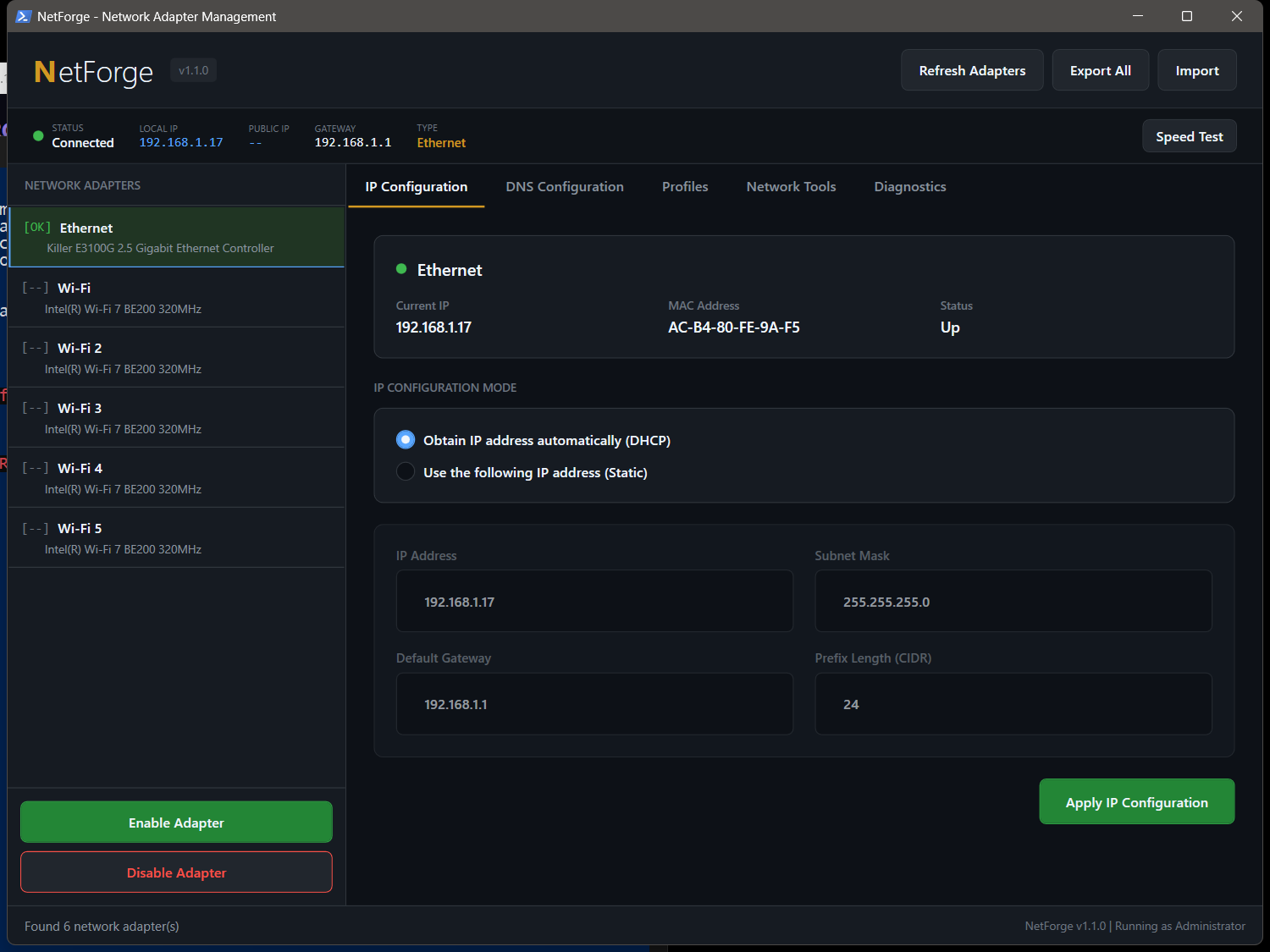
Connection Status Bar
- Real-time connected/disconnected indicator with colored dot
- Local IP, public IP (cached via api.ipify.org), gateway display
- Connection type detection (Ethernet/WiFi/VPN)
- WiFi details: SSID, signal strength %, channel, band, auth type, link speed
- Auto-refresh every 30 seconds
Network Adapter Control
- View all physical network adapters with real-time status
- Enable/disable adapters with one click
- Display detailed adapter information (MAC, speed, driver, media state)
- Auto-refresh capability
IP Configuration
- DHCP Mode: Obtain IP address automatically
- Static IP Mode: Configure custom IP settings
- IP Address
- Subnet Mask
- Default Gateway
- CIDR Prefix Length
- One-click switching between DHCP and static configurations
DNS Management
- 40+ Pre-configured DNS Presets organized by category:
- Public: Google, Cloudflare, OpenDNS, Quad9, Verisign, and more
- Security: Quad9, Comodo, Neustar Threat Protection, CleanBrowsing Security
- Privacy: DNS.Watch, Mullvad, NextDNS, Control D, UncensoredDNS
- Family: Cloudflare Family, OpenDNS FamilyShield, CleanBrowsing Family, AdGuard Family
- Ad-Blocking: AdGuard DNS, Alternate DNS
- Custom DNS server configuration
- IPv6 DNS support for compatible presets
- Search and filter DNS presets
Profile System
- Save complete network configurations as profiles
- Store IP settings, DNS configuration, and metadata
- Quick-apply profiles to any adapter
- Import/export profiles as JSON
- Perfect for switching between work, home, and other networks
Network Tools
- Quick Actions:
- Flush DNS Cache
- Release IP Address
- Renew IP Address
- Reset Winsock Catalog
- Reset TCP/IP Stack
- Full Network Reset
- Detailed Adapter Information:
- Interface index and type
- Link speed and media state
- DHCP status and server
- Current DNS servers
- IPv6 addresses
- Driver information
Diagnostics Tab
- Ping Test: 10-ping burst with min/avg/max/loss statistics
- Continuous Ping: Toggle on/off, pings every 2 seconds with color-coded results (green <50ms, yellow 50-100ms, red >100ms)
- Speed Test: Downloads ~10MB test file, calculates download speed in Mbps
- DNS Lookup: Resolve any domain to IP addresses, shows responding DNS server
Modern Interface
- Professional dark theme with orange accents
- Tabbed interface for organized navigation
- Real-time status updates
- Responsive design
- Native Windows look and feel
Screenshots
Coming soon
Requirements
- Operating System: Windows 10/11
- PowerShell: Version 5.1 or higher
- Privileges: Administrator rights required
- .NET Framework: 4.5 or higher (included in Windows 10/11)
Installation
Option 1: Direct Download
- Download
NetForge.ps1from the Releases page - Right-click and select "Run with PowerShell" (will auto-elevate to admin)
Option 2: Clone Repository
git clone https://github.com/yourusername/NetForge.git
cd NetForge
.\NetForge.ps1
Option 3: One-Line Install
irm https://raw.githubusercontent.com/yourusername/NetForge/main/NetForge.ps1 -OutFile NetForge.ps1; .\NetForge.ps1Usage
Running the Application
# Simply execute the script (auto-elevates if needed)
.\NetForge.ps1
Basic Workflow
- Select an Adapter: Click on a network adapter from the left panel
- Configure IP:
- Choose DHCP or Static IP mode
- Enter IP details if using static
- Click "Apply IP Configuration"
- Configure DNS:
- Select a preset from the DNS list, or
- Choose custom DNS and enter server addresses
- Click "Apply DNS Configuration"
- Save as Profile (optional):
- Go to Profiles tab
- Click "Create New Profile"
- Fill in details and save
DNS Presets Quick Reference
| Preset | Primary | Secondary | Best For |
|---|---|---|---|
| Cloudflare | 1.1.1.1 | 1.0.0.1 | Speed & Privacy |
| 8.8.8.8 | 8.8.4.4 | Reliability | |
| Quad9 | 9.9.9.9 | 149.112.112.112 | Security |
| AdGuard | 94.140.14.14 | 94.140.15.15 | Ad Blocking |
| OpenDNS Family | 208.67.222.123 | 208.67.220.123 | Parental Control |
Configuration Storage
NetForge stores its configuration in:
%APPDATA%\NetForge\
├── Profiles\          # Saved network profiles (.json)
└── settings.json      # Application settings
Keyboard Shortcuts
| Action | Shortcut |
|---|---|
| Refresh Adapters | Click "Refresh Adapters" button |
| Apply Settings | Enter (when in text field) |
Troubleshooting
Script Won't Run
# Set execution policy (run as admin)
Set-ExecutionPolicy -ExecutionPolicy RemoteSigned -Scope CurrentUser
Access Denied Errors
- Ensure you're running as Administrator
- The script will auto-elevate, but UAC must be approved
Adapter Not Showing
- Virtual adapters are filtered by default
- Only physical Ethernet and Wi-Fi adapters are displayed
- Click "Refresh Adapters" to update the list
DNS Changes Not Taking Effect
- Try flushing DNS cache (Network Tools > Flush DNS Cache)
- Release and renew IP address
- Restart the network adapter
Contributing
Contributions are welcome! Please feel free to submit a Pull Request.
- Fork the repository
- Create your feature branch (
git checkout -b feature/AmazingFeature) - Commit your changes (
git commit -m 'Add some AmazingFeature') - Push to the branch (
git push origin feature/AmazingFeature) - Open a Pull Request
License
This project is licensed under the MIT License - see the LICENSE file for details.
Acknowledgments
- DNS provider information sourced from official documentation
- Inspired by the need for a simple, powerful network management tool
- Built with PowerShell and WPF
Disclaimer
This tool modifies network settings on your computer. While it includes safety confirmations for destructive actions, please use responsibly. Always ensure you have a way to restore network connectivity before making changes. The author is not responsible for any network issues resulting from the use of this tool.
NetForge - Take control of your network