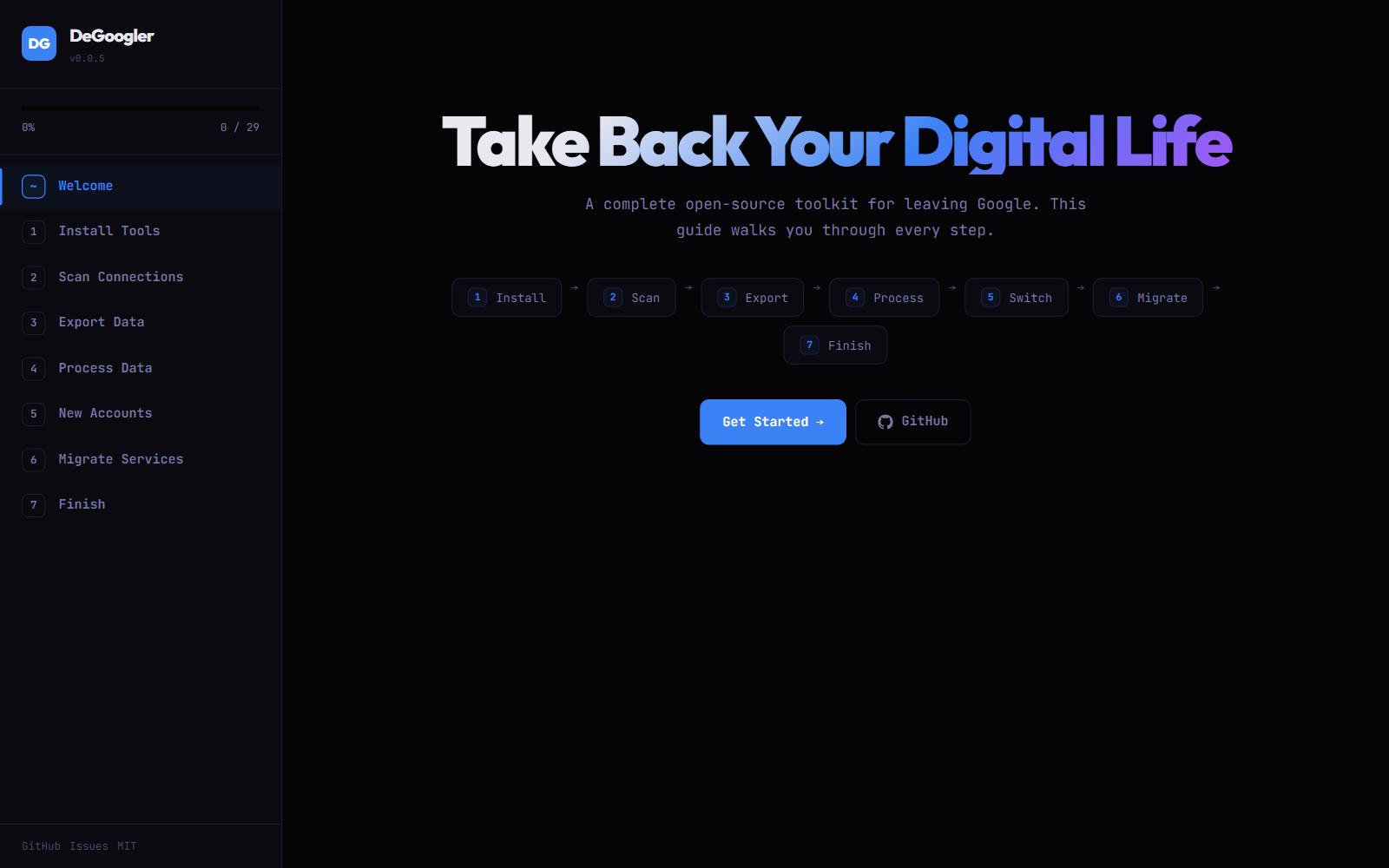
DeGoogler





A turnkey migration toolkit for leaving Google services behind. Interactive wizard, desktop data processor, and browser automation — everything a normal person needs to fully degoogle.
https://sysadmindoc.github.io/DeGoogler/
What Is This?
DeGoogler is a three-part toolkit that walks anyone through the process of migrating away from Google services:
- DeGoogler Web App (
degoogler.jsx) — Interactive React wizard that guides you through service inventory, alternative selection, and generates a phased migration plan - DeGoogler Toolkit (
DeGoogler-Toolkit.ps1) — PowerShell WPF desktop app that handles the heavy data processing: extracting Takeout archives, fixing photo metadata, converting passwords, processing emails, and more - DeGoogler Browser Assistant (
DeGoogler-BrowserAssistant.user.js) — Tampermonkey userscript that adds automation overlays on Google Takeout, YouTube, Gmail, and Google Account pages
Quick Start
Web App (Migration Wizard)
Open degoogler.jsx as a React artifact or deploy to any static hosting.
PowerShell Toolkit
# Download and run (auto-elevates, auto-installs dependencies)
irm https://raw.githubusercontent.com/SysAdminDoc/DeGoogler/main/DeGoogler-Toolkit.ps1 | iex
Or download DeGoogler-Toolkit.ps1 and right-click → Run with PowerShell.
Browser Assistant (Userscript)
- Install Tampermonkey or Violentmonkey
- Click here to install
- Visit any Google service page — the assistant panel appears automatically
Features
Web App — Migration Wizard
| Feature | Description |
|---|---|
| Service Inventory | 16 Google products across 7 categories with difficulty ratings |
| Alternative Database | 50+ curated privacy-respecting alternatives with ratings, cost, and platform info |
| Migration Plan Generator | Personalized 5-phase plan based on your selections |
| Progress Tracking | Persistent checklist across sessions with per-phase completion |
| Plan Export | Download full migration plan as Markdown |
| Direct Links | One-click links to Google Takeout, signup pages, and import guides |
PowerShell Toolkit — Data Processing
| Tool | Description |
|---|---|
| Takeout Extractor | Extracts and organizes Google Takeout ZIP archives into labeled folders per service |
| Photos Metadata Fix | Restores EXIF data from Google's JSON sidecar files (timestamps, GPS, descriptions). Auto-downloads ExifTool. |
| Password Converter | Converts Chrome password CSV to Bitwarden, KeePass, 1Password, or Proton Pass format. Optional secure-delete of source. |
| Email (MBOX) Processor | Splits Gmail MBOX files into individual EML files with label-based folder organization |
| Bookmark Converter | Converts Chrome JSON bookmarks to Netscape HTML for Firefox/Brave/LibreWolf. Auto-detects Chrome installation. |
| Contacts Processor | Cleans Google Contacts VCF exports: deduplication, phone number standardization, encoding fixes |
Browser Assistant — Userscript
| Module | Google Site | What It Does |
|---|---|---|
| Takeout Helper | takeout.google.com | Select All / Deselect All services, export priority guide, recommended settings checklist |
| YouTube Exporter | youtube.com | Exports subscriptions as OPML for import into NewPipe, FreeTube, or Invidious |
| Account Audit | myaccount.google.com | 8-step audit checklist: app permissions, security, devices, activity, ads, privacy, takeout, forwarding |
| Connected Services Auditor | myaccount.google.com/permissions | Scans OAuth-connected apps, lets you add email-registered services manually, tracks per-service migration steps (Set Password → Update Email → Revoke Google → Verified), categorizes by priority (Critical/Important/Optional), exports full audit as CSV |
| Gmail Migration | mail.google.com | Step-by-step forwarding setup, auto-reply configuration, contact update checklist |
How It Works
┌─────────────────────┐     ┌─────────────────────┐     ┌─────────────────────┐
│   Web App (React)    │     │  Browser Assistant    │     │  PS Toolkit (WPF)    │
│                     │     │   (Userscript)        │     │                     │
│  1. Select services │     │  Automates Google     │     │  Processes exported  │
│  2. Pick alternatives│────>│  Takeout, exports    │────>│  data: photos, email │
│  3. Generate plan   │     │  YouTube subs, audits │     │  passwords, contacts │
│  4. Track progress  │     │  account, helps Gmail │     │  bookmarks, archives │
└─────────────────────┘     └─────────────────────┘     └─────────────────────┘
         PLAN                      EXPORT                      PROCESS
Typical workflow:
- Use the Web App to audit your Google usage and pick alternatives
- Install the Browser Assistant userscript
- Visit Google Takeout — the assistant helps you select and export everything
- Download your Takeout archives
- Run the PowerShell Toolkit to extract, fix, and convert your data
- Import processed data into your new services
- Visit myaccount.google.com/permissions — the Connected Services Auditor scans your OAuth apps and guides you through migrating every linked account
- Work through the connected services checklist: set passwords, update emails, revoke Google access, verify each one
- Follow the migration plan checklist to complete the transition
Covered Google Services & Alternatives
| Google Service | Top Alternatives |
|---|---|
| Gmail | Proton Mail, Tuta Mail, Fastmail, Mailbox.org |
| Google Drive | Proton Drive, Nextcloud, Tresorit, Filen |
| Google Search | DuckDuckGo, Brave Search, Startpage, Kagi |
| Chrome | Firefox, Brave, LibreWolf, Vivaldi |
| Google Calendar | Proton Calendar, Tuta Calendar, EteSync |
| Google Photos | Immich, Ente Photos, PhotoPrism |
| Google Maps | OsmAnd, Organic Maps, Magic Earth |
| YouTube | NewPipe, FreeTube, Invidious, Odysee |
| Google Docs/Sheets | LibreOffice, CryptPad, ONLYOFFICE |
| Google Meet | Jitsi Meet, Signal, Element (Matrix) |
| Google Keep | Standard Notes, Joplin, Obsidian |
| Google Authenticator | Aegis, Ente Auth, Bitwarden TOTP |
| Google Password Manager | Bitwarden, KeePassXC, Proton Pass |
| Google Translate | DeepL, LibreTranslate |
| Google Play Store | F-Droid, Aurora Store |
| Android OS (Stock) | GrapheneOS, LineageOS, CalyxOS |
Prerequisites
PowerShell Toolkit:
- Windows 10/11
- PowerShell 5.1+
- Admin rights (auto-elevates)
- ExifTool (auto-downloaded for Photos Metadata Fix)
Browser Assistant:
- Tampermonkey or Violentmonkey browser extension
- Any Chromium or Firefox-based browser
Web App:
- Any modern browser
Privacy & Security
- All data processing happens locally on your machine
- No data is sent to any external server
- The web app stores progress in browser storage only
- The userscript only runs on Google domains
- Password converter includes optional secure-delete (cryptographic overwrite) of source CSV
- No tracking, no analytics, no telemetry
FAQ / Troubleshooting
Q: Google Takeout export is failing or incomplete. A: Takeout exports for large accounts can take hours or days. Try reducing the archive size setting to 2GB and export in multiple batches. Use the Takeout Helper userscript to ensure all services are selected.
Q: Photos Metadata Fix says ExifTool not found.
A: The toolkit auto-downloads ExifTool on first run. If that fails, manually download from exiftool.org and place exiftool.exe in %LOCALAPPDATA%\DeGoogler\.
Q: Chrome passwords CSV is empty.
A: Chrome requires biometric/PIN verification before exporting. Go to chrome://password-manager/settings and click Export. The CSV is saved to your Downloads folder.
Q: YouTube subscription export found 0 channels.
A: YouTube's page structure changes frequently. As a fallback, use Google Takeout to export YouTube data — the subscriptions.csv file works with most import tools.
Q: Can I do this gradually? A: Absolutely. The migration plan is designed to be completed over weeks or months. Run old and new services in parallel during the transition phase.
Q: How do I find all the services tied to my Google account? A: Start with the OAuth scan at myaccount.google.com/permissions — the Browser Assistant automates this. But that only shows apps using "Sign in with Google." You also need to think through every service where your Gmail is the registered email: banking, insurance, government, medical, work HR, shopping, social media, hosting, utilities. The Connected Services Auditor has a quick-add list of 24 commonly-forgotten services to jog your memory.
Q: What happens if I delete my Google account before migrating connected services? A: You lose access to every service that relied on Google OAuth for login (unless you set a standalone password first) and every service that sends password resets or 2FA codes to your Gmail. This is the #1 mistake people make. The migration plan's Connected Services phase must be completed BEFORE account deletion.
License
MIT License — see LICENSE for details.
Contributing
Issues and PRs welcome. If you know of a better alternative or have a migration tip, open an issue.