



EXTRACTORX
Open-source bulk archive extraction tool for Windows
Inspired by ExtractNow by Nathan Moinvaziri
Drag-and-drop batch extraction with password cycling, nested archive support,
directory monitoring, and a premium themed interface. The original PowerShell app is preserved, and a modular Python port is now included.
Features
Core Extraction
- Batch extraction — queue hundreds of archives and extract them all at once
- 29 archive formats — ZIP, 7Z, RAR, TAR, GZ, BZ2, XZ, ZSTD, ISO, CAB, ARJ, LZH, WIM, CPIO, RPM, DEB, and more
- Multi-volume archive detection — automatically groups split archives (
.part1.rar,.7z.001, etc.) and only extracts the first volume - Nested extraction — recursively extracts archives within archives up to configurable depth
- Password cycling — automatically tries a stored password list against encrypted archives (DPAPI encrypted storage)
- Deep archive detection — identifies archives by magic bytes when file extensions are missing or wrong
- Verbose real-time output — see every file as it's extracted, with color-coded log entries
Interface
- Custom chrome — frameless window with branded title bar, no default Windows UI
- Multiple themes — Midnight, Graphite, Ocean, and White themes across the main window, settings, dialogs, and menus
- Virtualized ListView — handles 10,000+ queued items without lag
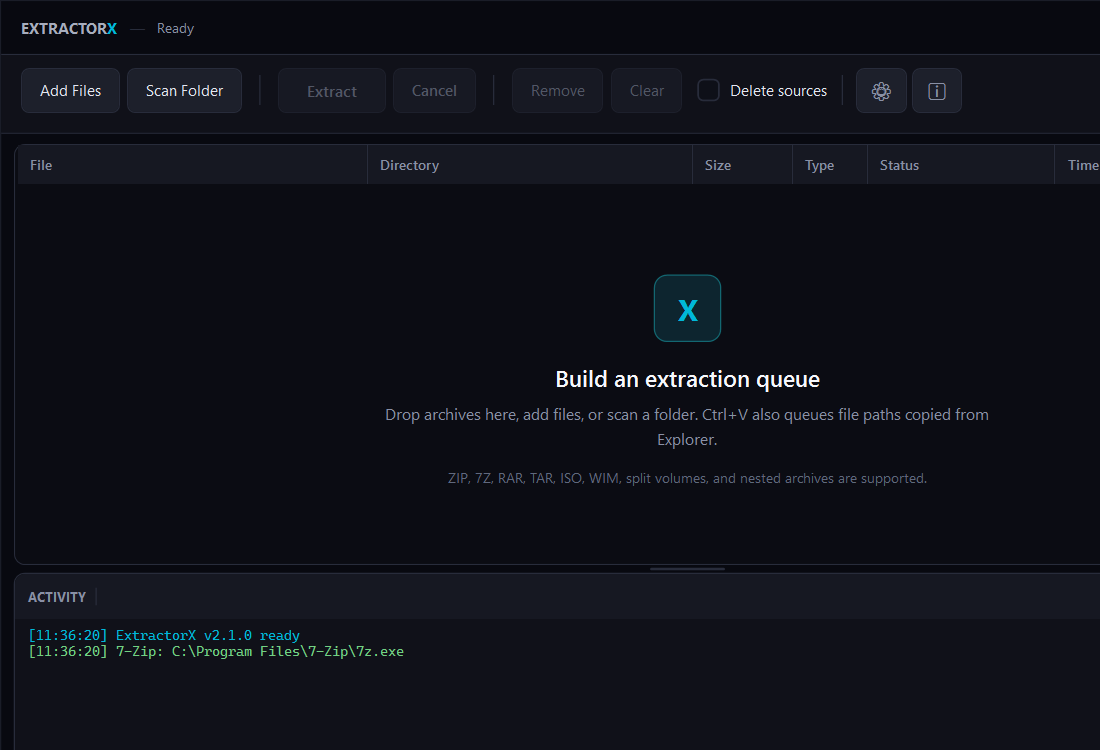
- Color-coded status rows — green (success), red (failed), blue (extracting), yellow (password required), gray (queued)
- Drag & drop — drop files or entire folders onto the window to queue archives
- Progress bar — thin accent-colored bar tracks extraction progress across the batch
- Column sorting — click any column header to sort ascending/descending
- Selection info — status bar shows count and total size of selected items
- System tray — minimizes to tray with live extraction status, context menu for quick actions
- Completion sounds — audible notification on batch success or failure
Automation
- Watch folders — monitor directories for new archives and extract automatically
- Windows Explorer context menu — right-click integration for Extract Here, Extract to Folder, Add to Queue, and Search for Archives
- External processors — route specific file extensions to custom commands after extraction
- Output path macros — template-based output paths with
{ArchiveFolder},{ArchiveName},{Date},{Guid}, and more - Command-line support — pass files/folders as arguments or use
-TargetPathto override output
Post-Extraction
- Post actions — do nothing, recycle, move to folder, or permanently delete source archives after success
- Duplicate folder removal — eliminates the redundant
archive/archive/nesting pattern - Single file rename — renames lone extracted files to match the archive name
- Broken file cleanup — optionally deletes output when extraction fails
Requirements
- Windows 10/11 with PowerShell 5.1+ for the legacy WPF app
- Python 3.10+ for the modular Python port
- 7-Zip — auto-detected from standard install paths, or downloaded automatically if not found
The Python port uses the standard library Tkinter UI and does not require third-party packages.
Installation
Option 1: Direct Download
Download `ExtractorX.ps1` and run it:
.\ExtractorX.ps1Option 2: Clone
git clone https://github.com/SysAdminDoc/ExtractorX.git
cd ExtractorX
.\ExtractorX.ps1
Execution Policy
If PowerShell blocks the script, run once:
Set-ExecutionPolicy -Scope CurrentUser -ExecutionPolicy RemoteSignedUsage
Quick Start
- Run
ExtractorX.ps1for the original WPF app, orpython ExtractorX.pyfor the Python port - Drag archives onto the PowerShell window, or click Add Files / Scan Folder
- Click Extract
Python Port
The Python implementation is organized into modules under extractorx/:
ExtractorX.py              # Python entrypoint
ExtractorX.Legacy.ps1      # Preserved copy of the polished PowerShell app
extractorx/
  app.py                   # Bootstrap and dependency wiring
  config.py                # Config defaults, normalization, persistence
  archive.py               # Archive detection, magic bytes, output paths
  extractor.py             # 7-Zip extraction service
  watcher.py               # Dependency-free watch-folder service
  passwords.py             # DPAPI-backed password store
  postprocess.py           # Cleanup, post-actions, external processors
  shell_integration.py     # Explorer context menu registry integration
  windows_integration.py   # Native drag/drop and tray icon bridge
  ui.py                    # Tkinter desktop interface
Run it with:
python .\ExtractorX.py
python .\ExtractorX.py --target "D:\Extracted" "C:\Downloads\archive.zip"
python .\ExtractorX.py --test "C:\Downloads\archive.zip"
python .\ExtractorX.py --extract-here --auto-extract "C:\Downloads\archive.zip"
Current Python parity plus v2.3 additions: batch extraction, archive testing, password cycling,
remembered batch passwords, password retry prompts, password text-file import, password entropy
meter, skip-after-N-failed-passwords policy, nested extraction, watch folders with batched
auto-extract, native Windows drag/drop, minimize-to-tray behavior, post-actions, file exclusions
and include masks, the full legacy output-macro set plus {Program Files}, persistent log
history, external processors, Explorer context menus, file associations, queue sorting,
selected-item summaries, status-colored rows, completion sounds, right-click queue actions, live
theme swapping, Smart Extract policy (Auto/AlwaysWrap/NeverWrap), filename encoding
override, parallel extraction, pre/post/on-failure lifecycle hooks, backend selector
for 7-Zip / 7-Zip ZS / NanaZip, handler allowlist, bookmarks menu, Identify button /
--identify CLI, Export Script toolbar action, URL argument support, and portable
mode (drop a portable.flag sibling file to relocate config/logs to ExtractorX.data/).
Tests live under tests/ and run with:
python -m unittest discover -s testsCommand Line
# Extract specific files
.\ExtractorX.ps1 "C:\Downloads\archive.7z" "C:\Downloads\backup.rar"

# Extract to a specific directory
.\ExtractorX.ps1 -TargetPath "D:\Extracted" "C:\Downloads\*.zip"

# Start minimized to tray
.\ExtractorX.ps1 -minimizetotray
Output Path Macros
| Macro | Description |
|---|---|
{ArchiveFolder} |
Directory containing the archive |
{ArchiveName} |
Archive filename without extension (compound .tar.* aware) |
{ArchiveNameUnique} |
Archive name with (N) counter appended when the target path already exists |
{ArchiveExtension} / {ArchiveExt} |
Archive file extension without the leading dot |
{ArchiveFileName} |
Full archive filename with extension |
{ArchiveFolderName} |
Name of the parent folder |
{ArchivePath} |
Absolute archive path |
{Desktop} |
User's Desktop path |
{UserProfile} |
User's profile directory |
{Program Files} / {ProgramFiles} |
%ProgramFiles% directory |
{Windows} |
%windir% |
{Guid} |
Random 8-character GUID segment |
{Date} |
Current date (yyyyMMdd) |
{Time} |
Current time (HHmmss) |
{Env:TEMP} |
Any environment variable, e.g. {Env:TEMP}, {Env:OneDrive} |
Default: {ArchiveFolder}\{ArchiveName} — extracts next to the archive into a folder matching its name.
Context Menu Integration
Enable in Settings > Explorer to add right-click options for archives and folders in Windows Explorer. Supports grouped submenus or flat entries.
Watch Folders
Add directories in Settings > Monitor to automatically detect and extract new archives as they appear. Useful for download folders.
Password Management
Add passwords in Settings > Passwords. Passwords are encrypted with Windows DPAPI and stored locally. ExtractorX cycles through the list automatically when it encounters an encrypted archive. Import from a text file (one password per line) for bulk loading.
Settings
ExtractorX has 9 settings tabs:
| Tab | Controls |
|---|---|
| General | Theme selection, always on top, minimize to tray, log history, deep detection |
| Destination | Output path template, overwrite mode |
| Process | Nested extraction, post-actions, cleanup, batch completion |
| Explorer | Context menu entries and grouping |
| Drag & Drop | Auto-extract on drop, inclusion/exclusion filters |
| Passwords | Password list management, import, cycling behavior |
| Files | File exclusion masks |
| Monitor | Watch folder list, auto-extract toggle |
| Advanced | Thread priority, sounds, external processors, config management |
Configuration is stored in %APPDATA%\ExtractorX\config.json.
Supported Formats
| Category | Extensions |
|---|---|
| Common | .zip .7z .rar |
| Tar variants | .tar .gz .gzip .tgz .bz2 .bzip2 .tbz2 .tbz .xz .txz .lzma .tlz .lz .zst .zstd .z |
| Disk / Package | .iso .cab .wim .cpio .rpm .deb |
| Legacy | .arj .lzh .lha |
| Split volumes | .001 (auto-detects .002+ siblings) |
Multi-volume archives (.part1.rar, .7z.001, .zip.001) are automatically detected — only the first volume is queued, and 7-Zip handles the rest.
Architecture
ExtractorX.ps1 (single file, ~2,500 lines)
│
├── UI Thread (STA)
│   ├── WPF Window (custom chrome, theme system)
│   ├── Virtualized ListView (10k+ items)
│   ├── DispatcherTimer (100ms polling)
│   └── Event handlers (drag/drop, sorting, selection)
│
├── Extraction Runspace (background thread)
│   ├── 7z.exe invocation (-bb1 -bsp1 verbose flags)
│   ├── ConcurrentQueue real-time output streaming
│   ├── Password cycling (silent probe then verbose extract)
│   ├── Nested archive recursion
│   └── Post-action processing
│
├── Scan Runspace (background thread)
│   ├── Recursive directory enumeration
│   ├── Extension + magic bytes detection
│   ├── Multi-volume part filtering
│   └── Batch UI updates via synchronized queue
│
└── Watch System (FileSystemWatcher per folder)
    ├── Debounced file detection
    └── Auto-queue with optional auto-extract
Credits
- 7-Zip by Igor Pavlov — 7-zip.org (LGPL)
- ExtractNow by Nathan Moinvaziri — original inspiration for the workflow and feature set